
How to Use Race Guides Benchmarks vs Filters
Race Guides Benchmarks vs Filters — Help Guide
Customise your form analysis with powerful filter controls
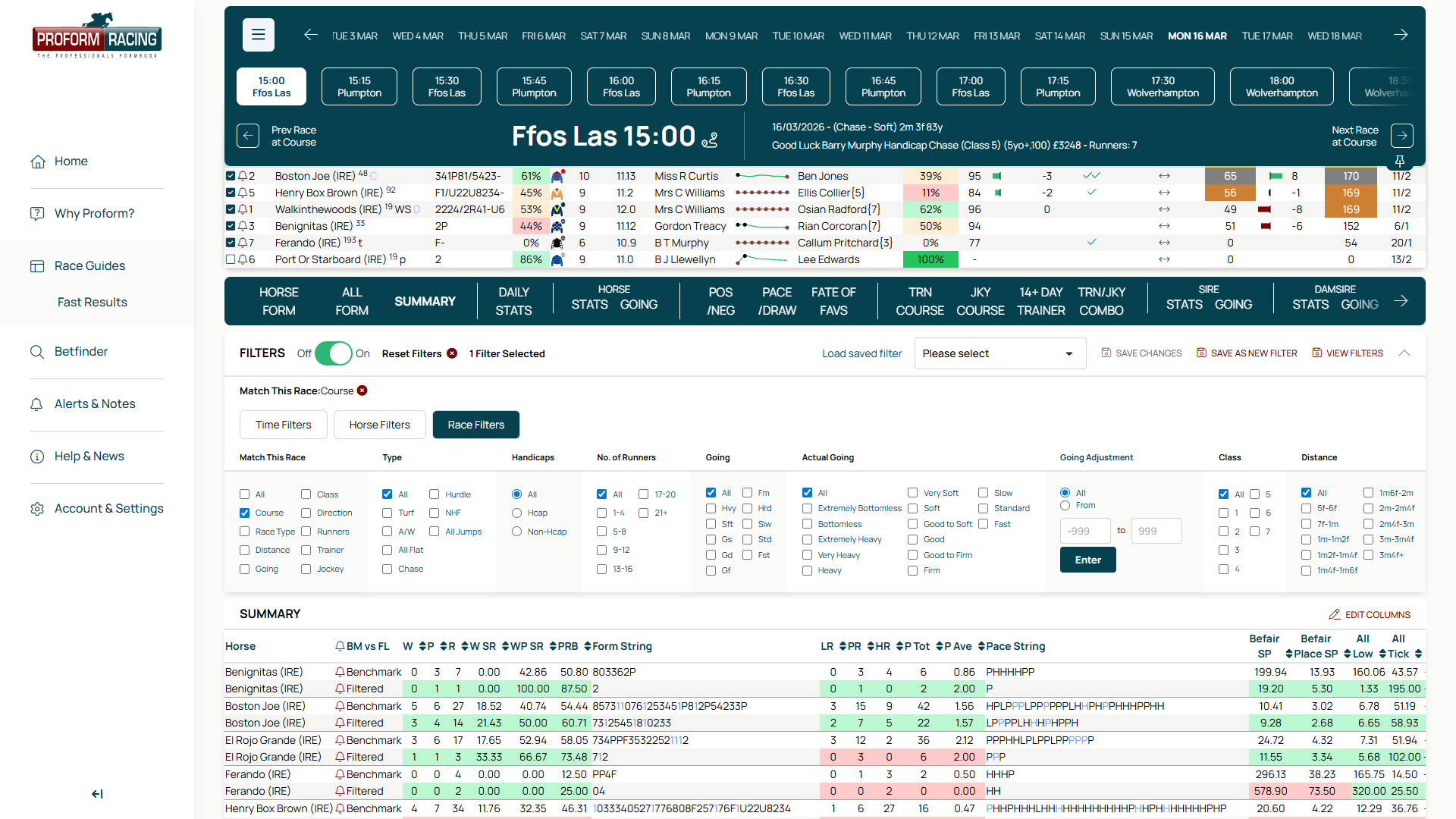
When you apply a filter, the Race Guides data tabs show two rows of statistics for each runner: Benchmark (career-wide data) and Filtered (data from runs matching your filter criteria). This side-by-side comparison is the core value of the filter system.
Summary Tab
Click the Summary tab to see Benchmark vs Filtered stats for every runner in the race at a glance. Each horse has two rows — compare win rates, place rates, speed ratings and more between their full record and the filtered subset.
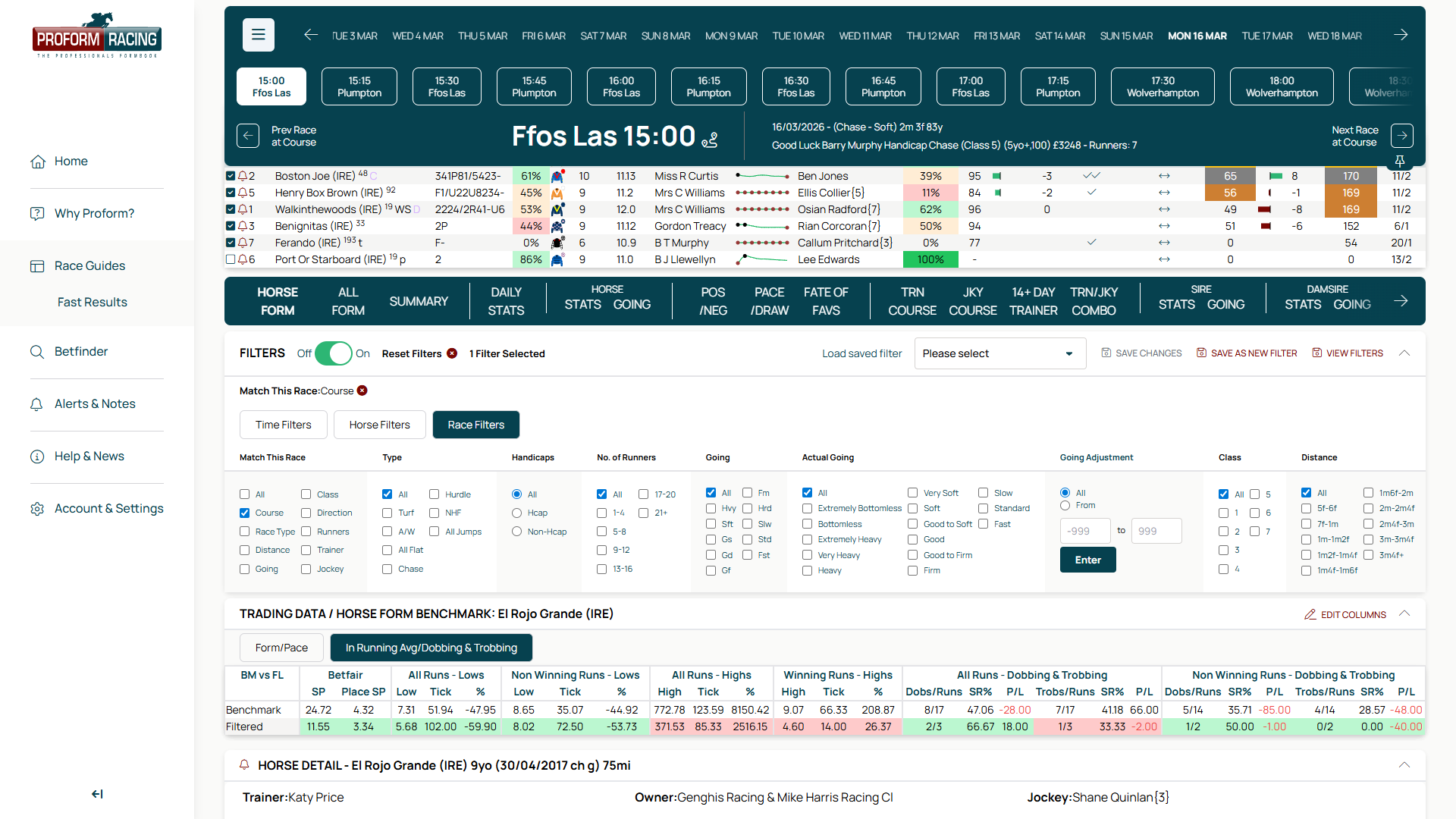
Horse Form Tab
The Horse Form tab provides an individual breakdown for each runner. The trading data section shows Benchmark vs Filtered side by side — spot how a horse's exchange profile changes under specific conditions such as course, going, or distance.
Saving Filters
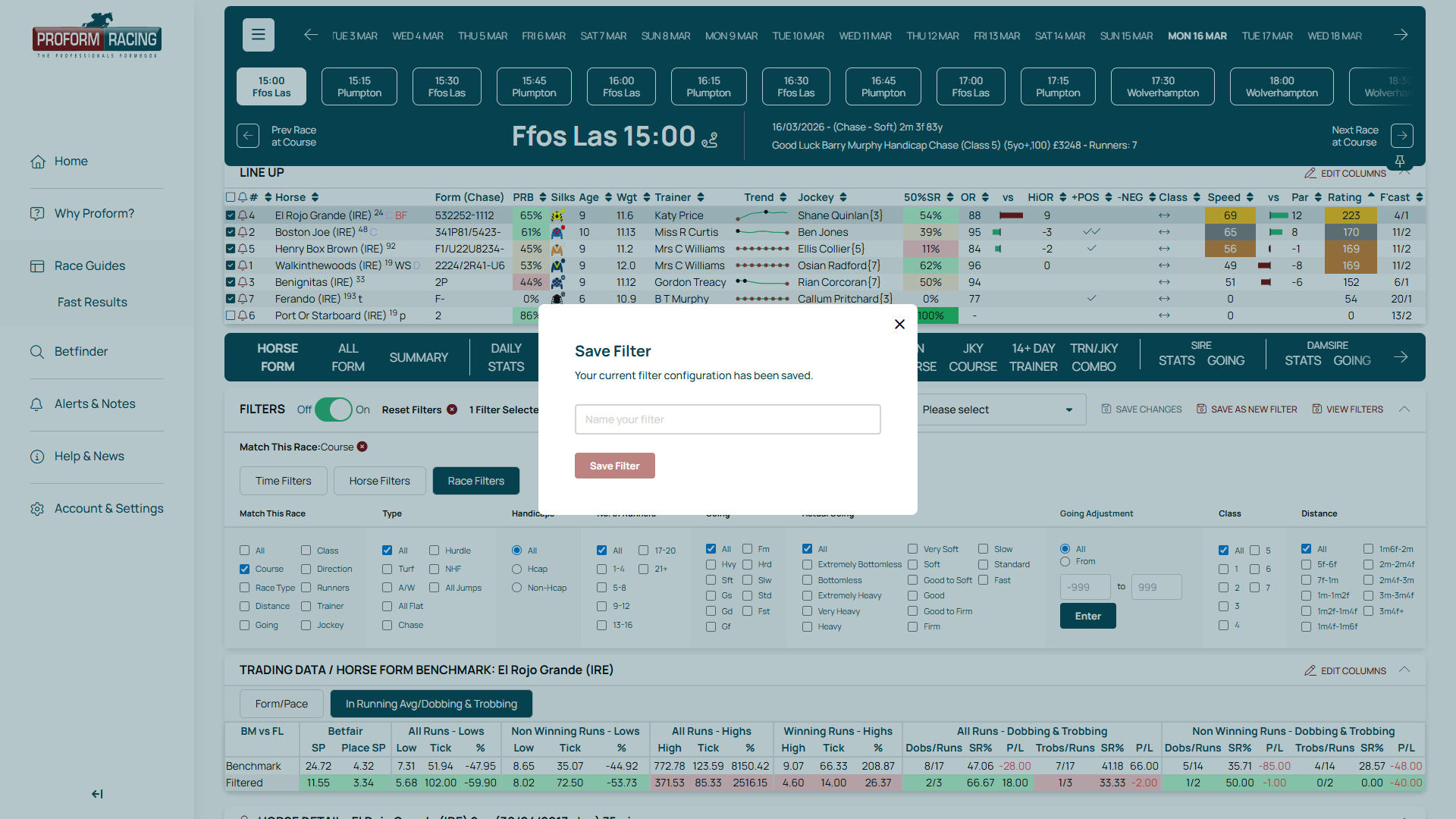
Once you have built a filter combination that suits your analysis style, you can save it for reuse. This is especially useful if you use the same filter setup across different race meetings.
- ✓Set up your desired filter combination across the Time, Horse, and Race tabs
- ✓Click Save As New Filter to open the save dialog
- ✓Enter a descriptive name for your filter configuration (e.g., "Soft Ground Handicaps" or "Recent Flat Form")
- ✓Click Save Filter to store the configuration
If you later adjust a saved filter, use the Save Changes button to update it in place without creating a new entry.
Loading Saved Filters
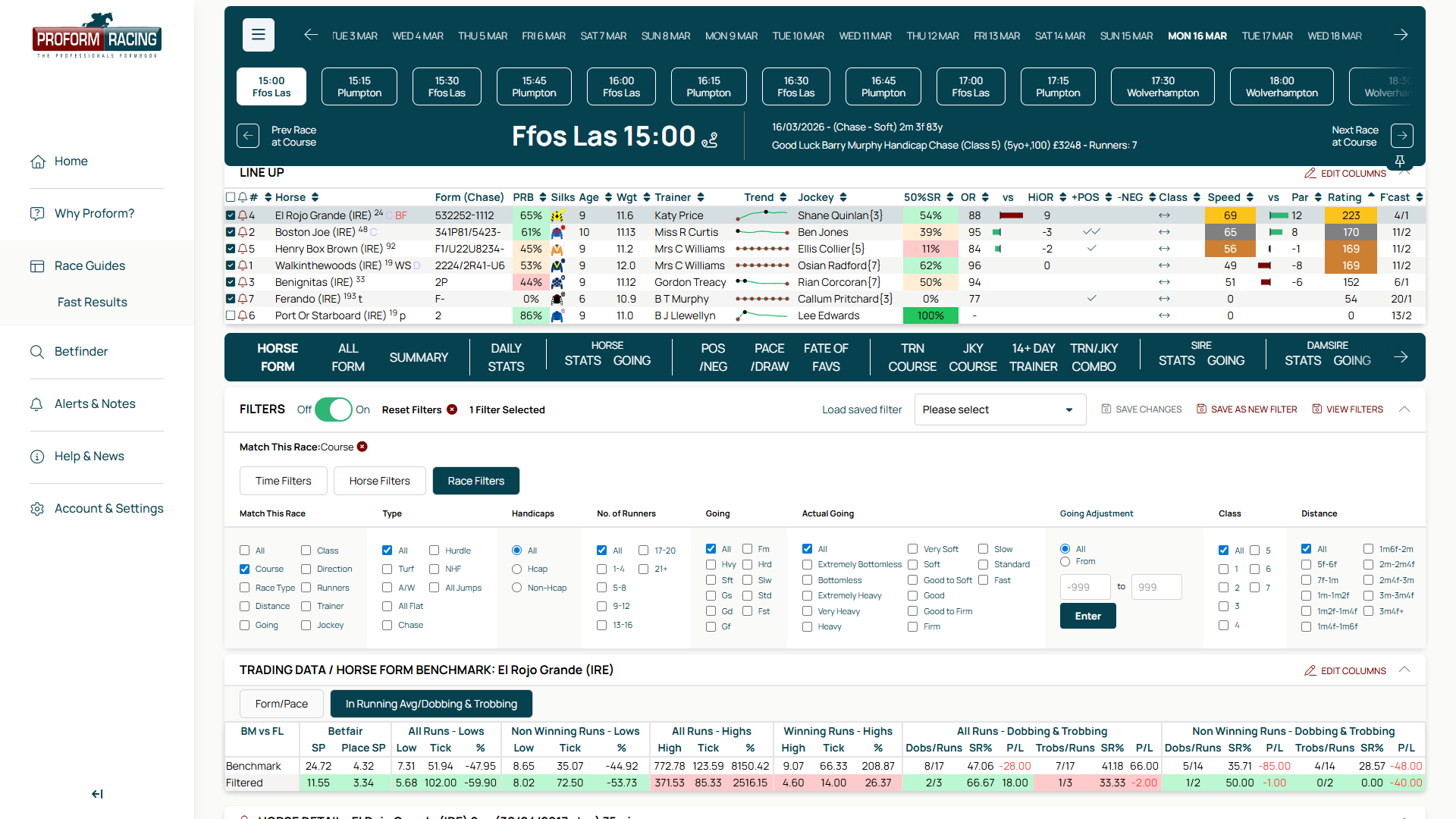
Retrieve a previously saved filter setup in one click. Use the Load saved filter dropdown to browse your saved configurations and apply them instantly.
- ✓Click the Load saved filter dropdown
- ✓Select the filter configuration you want to apply
- ✓The form data updates immediately with the saved filter criteria
To clear all active filters and return to the unfiltered view, click the Reset Filters button.
Tips & Best Practices
- ✓Start with Time Filters to set your analysis window before adding other filters
- ✓Use "Match This Race" in Race Filters to quickly match conditions for today's race
- ✓Save commonly used filter combinations for different race types (e.g., handicaps, soft ground, sprint form)
- ✓Use the DSLR filter to find fresh horses coming back quickly or well-rested ones after a break
- ✓Combine Horse and Race filters together for precise analysis — such as wins only on soft ground at this distance
- ✓Reset filters before starting a new analysis to ensure you are working from a clean baseline
- ✓Check the number of qualifying runs after filtering — very small samples may not tell the full story
- ✓The Actual Going filter provides a more accurate picture than the official going description
Proform Racing — Professional Horse Racing Analysis
Race Guides Filters Help Guide