
Automatically Exporting Data
by Simon Walton
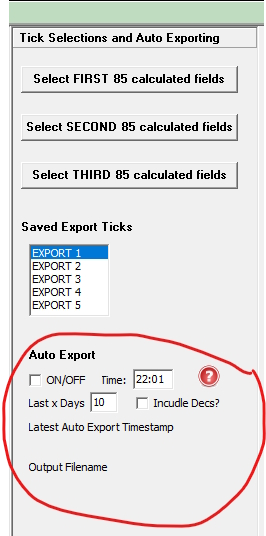
In the exporter you can setup a daily automatic export using the fields at the bottom of the Tick Selections and Auto Exporting column.
How does it work?
- Enter the time you want the export to start each day in the format hh:mm using a 24 hour clock time..
- Enter the number of days backwards in the last x days box (defaults to 10).
- If you want to export declarations then tick the Include Decs box and the export will look 2 days forward as well as backwards..
- Leave the exporter screen open otherwise the auto export will not run.
- Tick the ON/OFF box to turn on the auto export and the calendar dates will be setup to the last x days etc.
- If you wanted to setup a adhoc export of a variable date range then set the Last x Days to 0 and then choose the dates you require and tick the Start Date and End Date tick boxes.
- If you leave Proform and the export page open then everyday the dates to export will move forward when the auto export starts.
What folder does the exported data appear in?
- The export file will be given the date it ran as a name and exported to the folder c:\proformp\exports.
- The status updates underneath the auto export fields will tell you the time it finished and confirm the output folder.